VEVO Checks
This guide will instruct you on how to perform VEVO checks when hiring new staff or for existing staff.
Turn On VEVO Checks
VEVO Checks can be turned on from Global Settings.
Menu > General > Global - System Settings

VEVO Check Requirements
The following fields are required by staff for a VEVO check:
- Full Name
- Date of Birth
- Passport or ImmiCard number
- Overseas Country
These four fields are completed during onboarding.
Microkeeper also requires the TFND (Tax File Number Declaration) to be complete before a VEVO check is performed.
VEVO Check During Staff Onboarding
Staff can complete a VEVO check during their onboarding process.
To trigger a VEVO check, one of the following must happen:
- Answers No to "Are you an Australian Citizen?"
- TFND set to Working Holiday Maker
- TFND set to Foreign Residence
- Overseas Country set to outside Australia
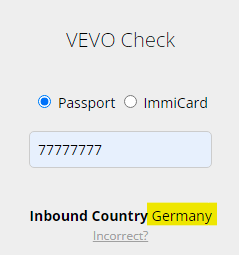
The employee will then be presented with a VEVO Check form:
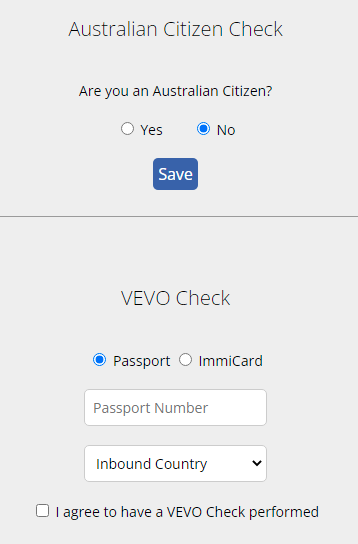
The VEVO Check is performed in real time and a response is provided.
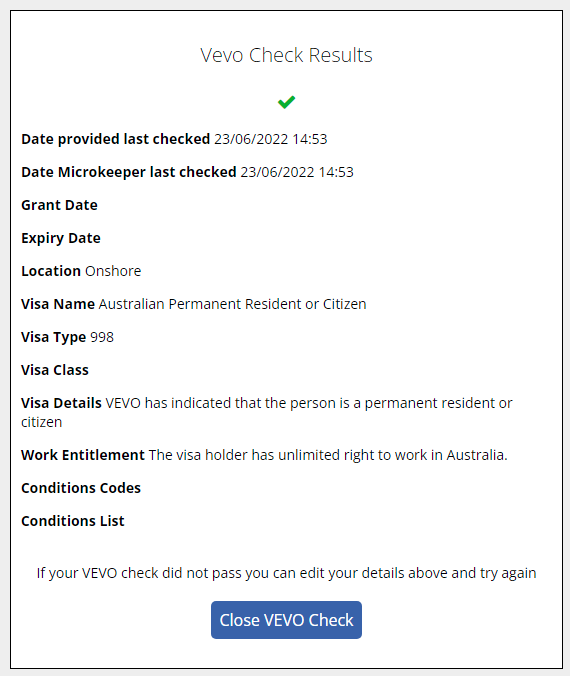
If a record is found, the employee can close the form. If not, they can try again.
Historical VEVO Checks
Administration staff can also complete a VEVO check on an employee's behalf.
Navigate to Menu > HR > VEVO Checks > click "Add VEVO Check".
- Select an employee to check.
- Select the documentation type.
- Enter the document number.
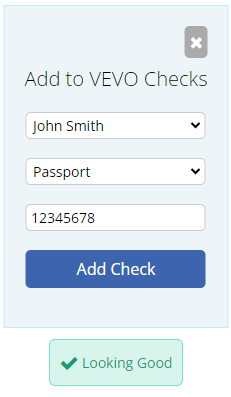
Reviewing VEVO Checks
Administration staff can review VEVO checks from Menu > HR > VEVO Checks.
Use the Expiring in 30 days filter to review staff whose visas are due to expire soon. This list should be reviewed weekly so you can follow up with staff about their ongoing work rights.
Microkeeper sends an email alert when a staff member's VEVO result changes to cannot work, for example where a visa has expired or no visa is found. This means you do not need to check VEVO results daily solely to identify these outcomes.
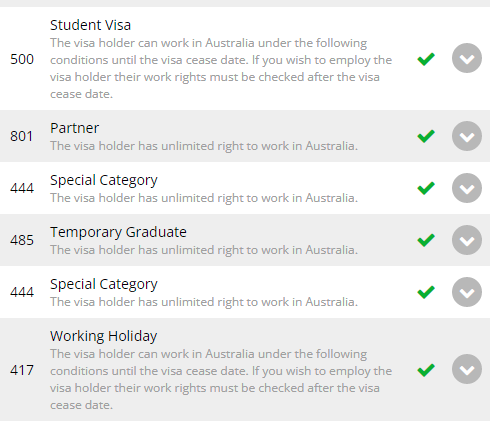
There are many different types of visas. Microkeeper will attempt to interpret the response and decide if the employee has the right to work in Australia.
- If Microkeeper detects that the employee has the right to work, a green tick is displayed.
- If Microkeeper detects that the employee cannot work, a red cross is displayed.
- If there was an error when making the VEVO check, a red cross is also displayed. This will require a manual retry.
- If Microkeeper is not sure, a yellow tick is displayed.
Monitoring Changes to Visas
Some staff are eligible to work indefinitely, while others are only eligible for a limited period or until their visa expiration date.
Microkeeper automatically performs further VEVO checks and flags any changed results for review.
These automated checks are performed at the start of each financial quarter. The quarterly check refreshes VEVO results and updates the employee's visa and work-rights details.
If a quarterly check changes an employee's result to cannot work, Microkeeper sends an email alert so action can be taken.
The quarterly check provides deeper compliance follow-up. Your regular workflow should focus on reviewing the Expiring in 30 days list weekly and responding to any email alerts.
Dealing with Inaccurate Data or Suspected Fraud
Staff might accidentally or maliciously select an incorrect option, bypassing the VEVO check.
If you suspect this has happened, VEVO can be made a requirement of onboarding.
To do this, set the Overseas Country in the Employee Profile.
This will make the VEVO check a requirement of onboarding, and the employee cannot change the Overseas Country once it has been set.
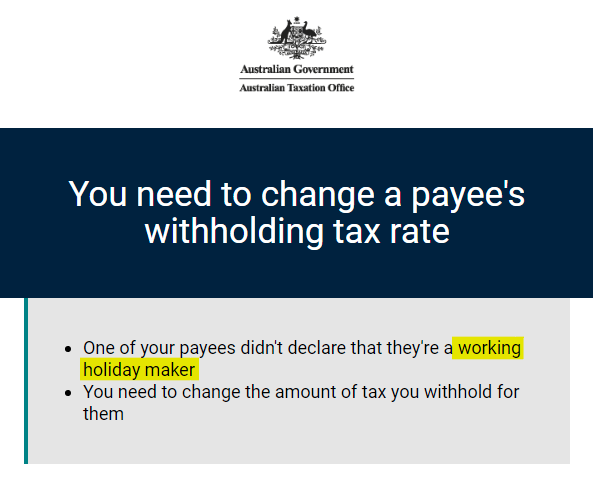
The ATO will also inform the employer if an incorrect option was selected on an employee's TFND, which is another safeguard to help identify incorrect data.