Reviewing and Managing Submitted Skills
Use the Skill Review page to approve, decline, and monitor employee skill submissions from one place.
Overview of Skill Review
The Skill Review workflow helps managers monitor submissions, follow up missing or expiring skills, and action approvals from one page.
- Review submitted files and response values
- Filter and find skills that need action
- Approve, decline, comment, and follow up quickly
Navigate to Skills Review
- Navigate to Menu > HR > Skill Review
Overview of the Skills Review Page
The Skills Review page displays all skill submissions from employees in your organisation. The interface consists of:
- Header: Export CSV, Submit on Behalf and Notify Staff buttons
- Pending Approval Header: Shows the count of skills "Pending Approval" that require manager/admin review.
- Filter Bar: Refine the list of submissions you want to view
- Submission List: See all skill submissions matching your filters in a scrollable table
- Skill Submission Action Page: Full-screen detailed view for reviewing and actioning individual submissions
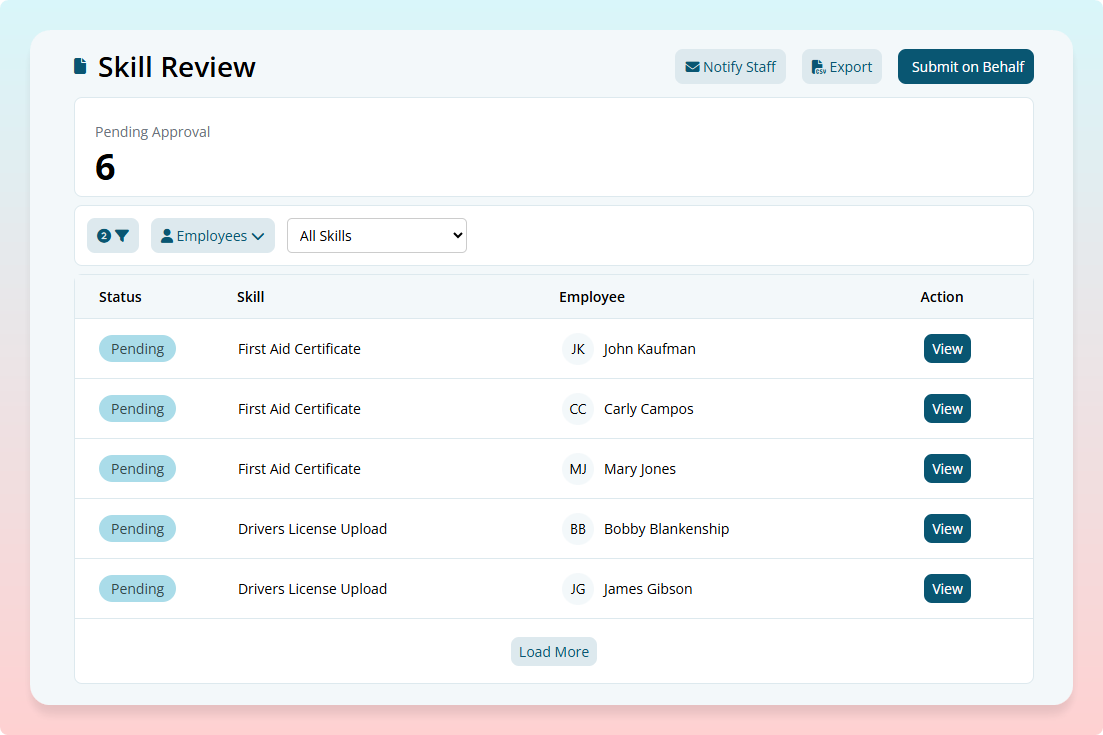
At the top of the page, you'll find three key action buttons:
Export Submitted Skills
Download a CSV file of submitted skills based on your current filters.
- (Optional) Configure your filters to your selected skills
- Click the Export button
Submit a Skill on Behalf of an Employee
Create and submit a skill for an employee (useful when assisting employees or during bulk onboarding).
- Click the Submit on Behalf button
- Select the Employee you wish to create a submission for
- Select the Skill you would like to create a submission for
- Click Submit and follow the prompts.
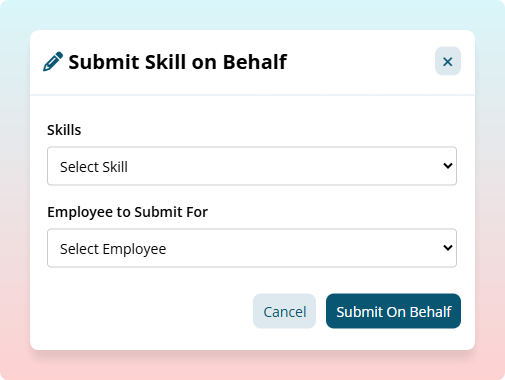
Note: If you have no skill templates available, you can create them in Settings > Skill Config. Ensure the skill status is set to 'Active' for it to appear in this list.
Notify Staff on Missing Skill Submission
Emails can be sent out to staff who have not yet completed a skill submission
- Click the Notify Staff button
- Select the Skill you would like to notify for
- Review the list and click the Send Email Notification button to send emails to staff
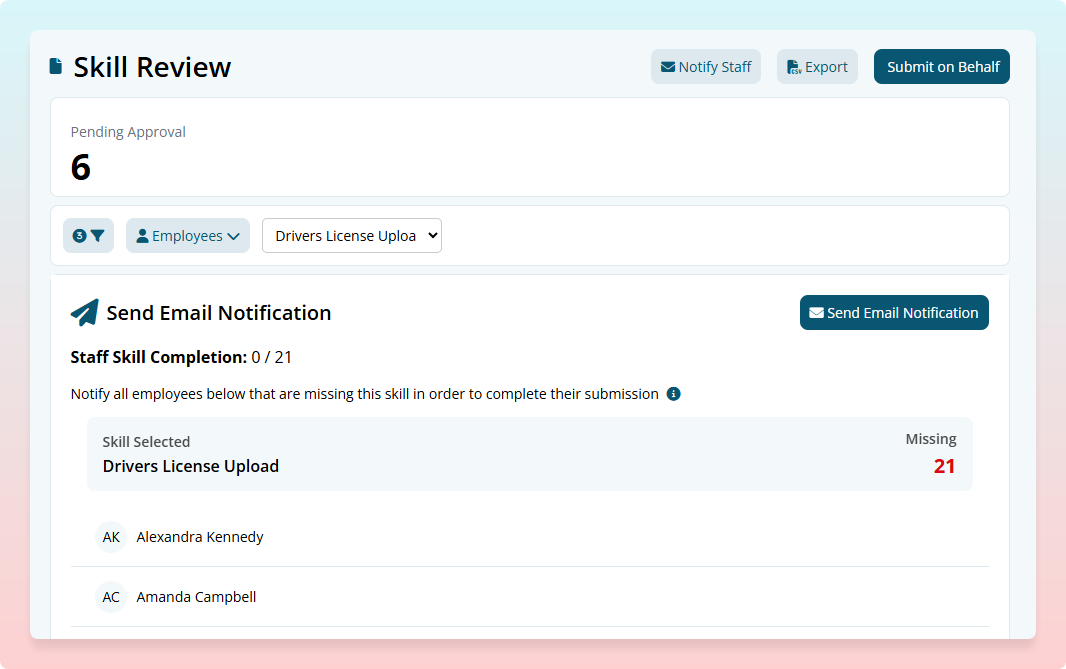
Filtering Skills Panel
Use the filter bar to narrow down the submissions you want to review:
Location: Filter by specific location or select "All Locations" to view all managed sites
Status: Filter by submission status:
- Draft - Employee has started but not submitted
- Pending Approval (default) - Awaiting manager review
- More Information Required - Manager declined a previous submission and is awaiting resubmission by the employee
- Approved - Manager has approved the skill
- Expiring - Approved skills approaching expiry date (within the reminder period)
- Skill Missing - Employees who haven't submitted a required skill
- All Statuses - View everything (requires full skill access)
Most Recent Only (checkbox, checked by default): Shows only the latest submission for each employee/skill combination. Keep this checked to hide older, superseded submissions and focus on current submissions.
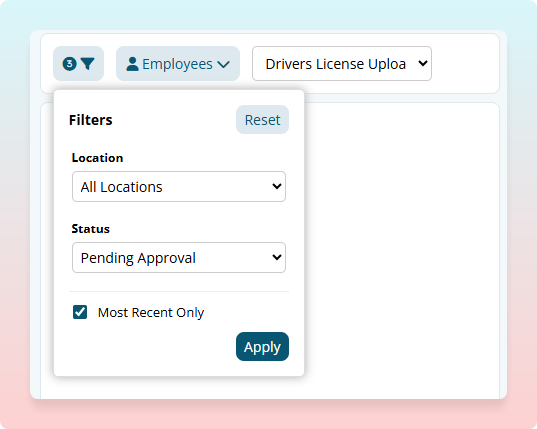
Employee Selection Dropdown
Search and select a specific employee to view only their submissions
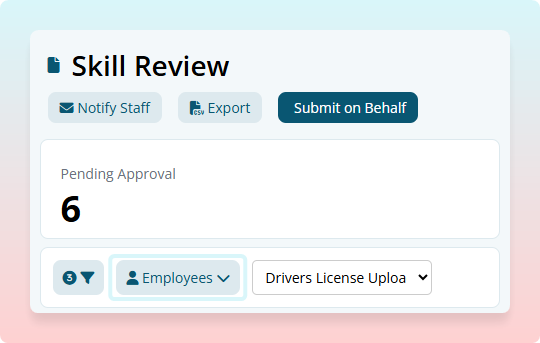
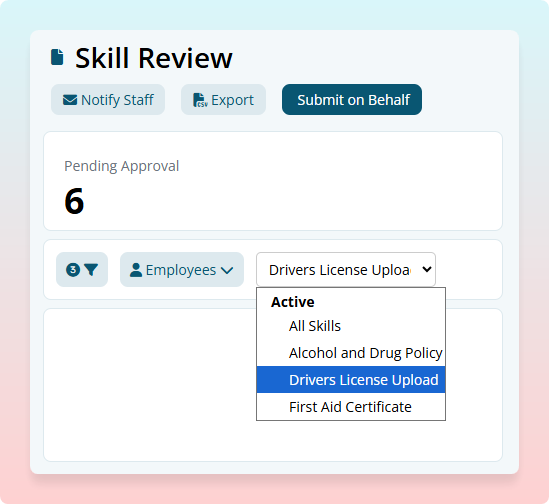
Skills Selection Dropdown
Filter by a specific skill template or select "All Skills"
Tip: Click the Reset button inside the filter dropdown to reset all filters back to the default state; pending approval state.
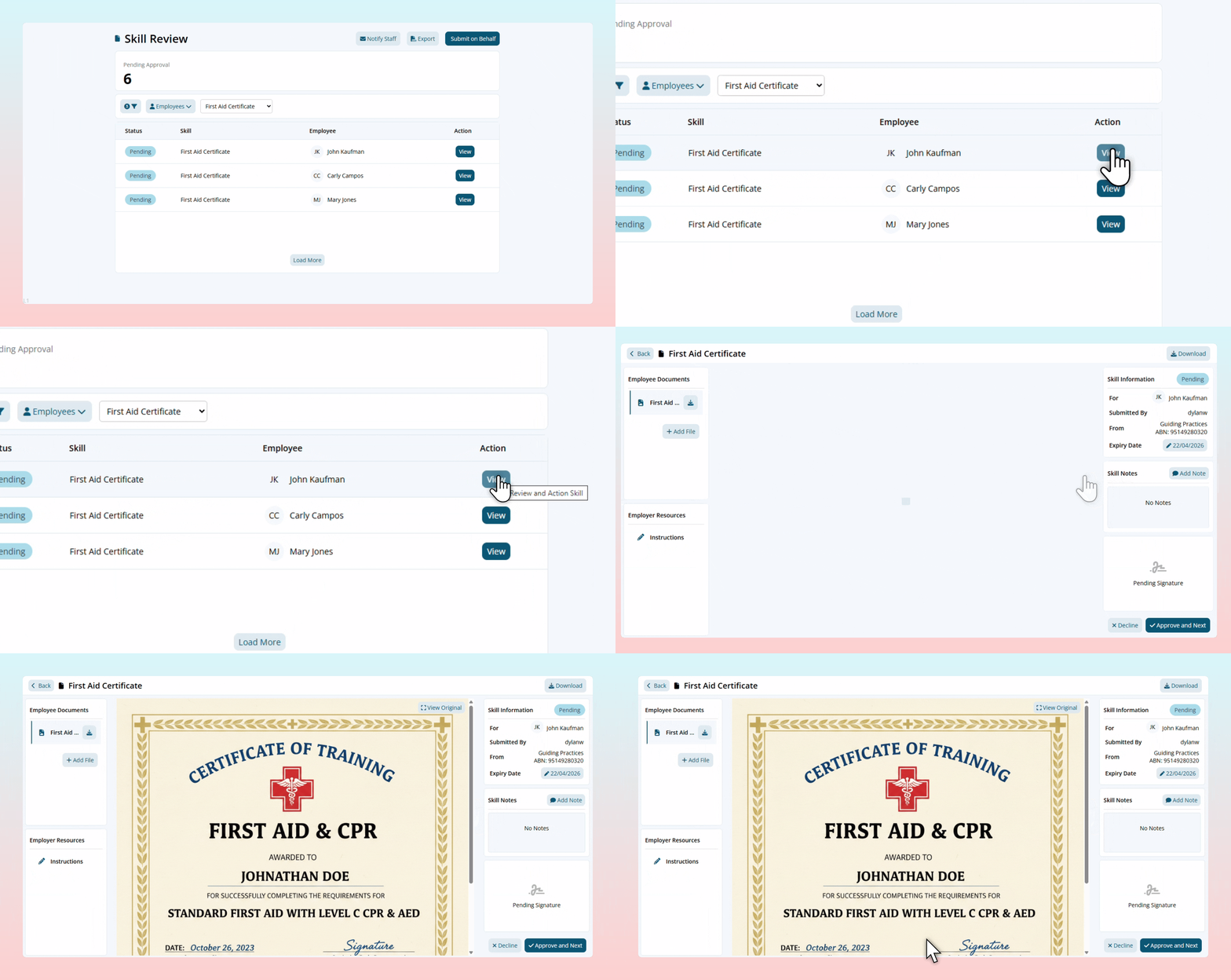
Viewing the Submission List
The skill submission table shows each employee's skill status and allows you to open submissions for review:
- Status: Color-coded badge showing current status (hover for more information)
- Skill: Name of the skill template
- Employee: Name and profile picture of the employee the skill is submitted for.
- View: Open the submission review page

Understanding Skill Statuses
Each submission displays a color-coded status badge. Hover over any badge to see a detailed explanation of what that status means:
- Draft (Grey): The employee has started but not yet submitted the skill
- Pending (Blue): Submitted and awaiting manager review - action required
- Declined: Manager has declined a previous submission; resubmission is required from the employee
- Approved (Green): Manager has approved the skill submission
- Expiring (Yellow): An approved skill approaching its expiry date
- Expired (Red): A skill that has passed its expiry date and needs renewal
Reviewing and Actioning a Skill Submission
Click the View button on any submission to open the full-screen review page. Use the Back button to return to the list.
Submission Review Page Layout
The review page contains the following areas. Use them to view documents, check details, add notes and action the skill review.
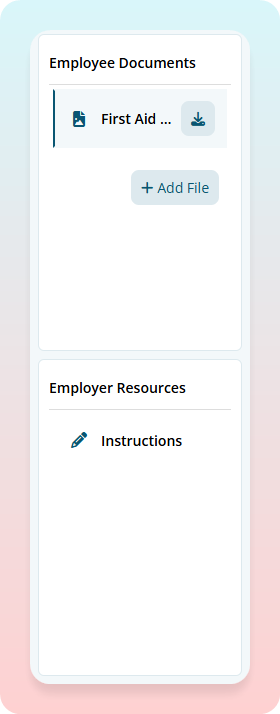
Documents
- Employee Documents: Files the employee uploaded during submission. Click Add File to attach additional documents to the submission.
- Employer Resources: Instructions and any uploaded resources related to the Skill Configuration
Document Viewer
- Displays the selected document or instructions
- PDFs and images display directly in the viewer
- For images larger than the screen, click View Original to see full size
- Non-viewable file types (DOCX, XLSX) can be downloaded to be viewed
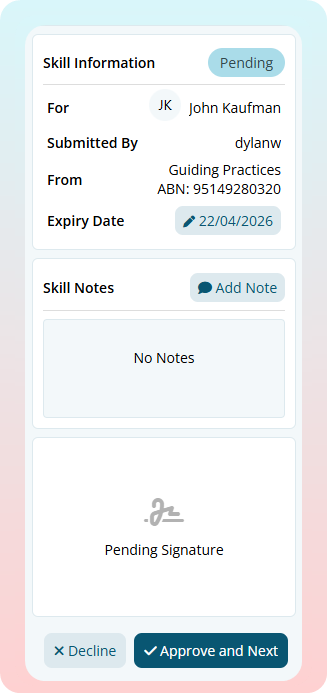
Skill Information & Actions
Contains:
- Skill Information: Status, employee details, expiry date (click to edit), response value
- Skill Notes: View existing notes or click Add Note to add comments
- Signature: Employee's digital signature with date signed
- Action Buttons: Edit, Decline, and Approve And Next
Note: Some Information might not be visible as information was not provided or is not required as per the skill configuration template. E.g. Response ID
Common Workflows for Reviewing a Skill Submission
Approving a Skill
- Click View on the submission
- Review the employee documents in the left sidebar
- Verify expiry date and response value (if applicable)
- Check the employee's signature
- Click Approve And Next
The Approve and Next button approves the submission and automatically loads the next pending skill from the list.
Declining a Skill
- Review the submission and identify issues (e.g. blurry document, wrong expiry)
- Click Add Note in the Skill Notes box
- Explain clearly what needs correction
- Click Add Comment to save
- Click Decline
An email is sent to the staff member prompting them to resubmit with the required information.
Adding Notes
To add a note:
- Click Add Note
- Type your comment
- Click Add Comment
Adding a File
In the left sidebar under Employee Documents, click the Add File button to attach a document to the submission