Deduction and Expense Rules
Use Expenses and Deductions to automatically add pre-tax expenses or post-tax deductions to selected employees' payslips when payroll is processed. Choosing the correct type matters: an Expense is applied before tax, while a Deduction is taken from after-tax pay, so the rule is calculated and reported correctly.
Open Expenses and Deductions
- Open Menu > Settings > Payroll Rules > Deductions Rules.
- Choose the Expenses or Deductions tab.
- Click Add New Expense Rule or Add New Deduction Rule.
You need Settings - Full Access and Payroll - Full Access to create or change these rules.
The page shows the saved rules in a table. Use the edit button to change a rule, Clone to copy an existing rule, or Delete to remove it.
Choose the correct rule type
| Rule type | When it is applied | Common examples |
|---|---|---|
| Expense | Before tax. Expenses reduce the earnings used to calculate taxable pay. | Salary sacrifice and fringe benefit expenses. |
| Deduction | After tax. Deductions are taken from the employee's after-tax pay. | Child Support, union fees, workplace giving and repayments. |
Use the rule type that matches the payment.
- Child Support classifications are for Deductions.
- Fringe Benefit classifications are for Expenses.
- The percentage options Gross Taxable and After Tax are available for Deductions only.
Add a rule
- Open the correct tab and click Add New Expense Rule or Add New Deduction Rule.
- Optionally select a template: Super Sal Sac, Child Support, Union Fees or Charity. Templates only fill in example values, so check every field before saving.
- Complete the rule fields below.
- Click Add Rule. When editing an existing rule, the button is Update Rule.
Complete the rule fields
| Field | What to enter |
|---|---|
| Title | The title shown on the employee's payslip. Keep it clear and specific, such as Child Support - J Smith. |
| Staff | Choose ALL, a group, or one employee. |
| Fixed or Percentage | Choose Fixed for a set amount, or Percentage to calculate the amount from the selected earnings base. |
| Value | Enter the dollar amount for a Fixed rule or the percentage for a Percentage rule. The value cannot be zero. |
| Bank Account | Choose No Bank Account if the rule should only appear on the payslip. Choose a configured account when the amount should be paid automatically in an ABA file. |
| Class | Choose the classification that matches the rule. This affects payroll, superannuation and STP reporting. |
A Fixed rule is recalculated for each payrun. The payroll engine applies the account's pay frequency, so check the amount on a sample payrun before processing payroll.
Percentage calculation bases
When Percentage is selected, choose the base that the percentage should use:
| Form option | Calculation base |
|---|---|
| All Payments | All payments to the employee, including Super. |
| All Payments Less Super | All payments to the employee excluding Super. |
| Gross Taxable | All payments less Expenses. This option is for Deduction rules. |
| After Tax | Payments less Expenses and tax. This is before the current post-tax deduction, so it is not the final take-home amount. |
The saved rule table abbreviates these options as % CTB, % CTB Less Super, % Taxable and % After Tax.
Classes
| Class | Available for | Use it for | STP reporting |
|---|---|---|---|
| NA | Both | Standard deductions, such as an advance repayment. | Not separately reported as an STP deduction type. |
| Super | Both | Salary sacrifice or an employee super deduction. This classification is used in superannuation reports and clearing-house payments. | Salary-sacrificed super: S + R. After-tax employee super: not separately reported as an STP deduction type. |
| Fees | Deduction | Union fees, subscriptions and professional association fees. | F Union and professional association fees. |
| Work Place Giving | Deduction | Amounts given to a charity. | W Workplace giving. |
| Fringe Benefit Exempt - Salary Sacrificed | Expense | A salary-sacrificed expense that is an exempt fringe benefit. | O + X Other salary sacrifice and exempt reportable fringe benefit. |
| Fringe Benefit Taxable - Salary Sacrificed | Expense | A salary-sacrificed expense that is a taxable fringe benefit. | O + T Other salary sacrifice and taxable reportable fringe benefit. |
| Fringe Benefit Exempt - Normal | Expense | A normal expense that is an exempt fringe benefit. | X Exempt reportable fringe benefit. |
| Fringe Benefit Taxable - Normal | Expense | A normal expense that is a taxable fringe benefit. | T Taxable reportable fringe benefit. |
| Child Support (PEA) | Deduction | Child Support where a Protected Earnings Amount applies. | D Child Support Deduction. |
| Child Support (72A) | Deduction | Child Support where the relevant notice says the 72A treatment applies and the Protected Earnings Amount does not apply. | G Child Support Garnishee. |
STP note: The STP reporting column shows the relevant STP Phase 2 reporting treatment. Codes D and G are only for Child Support deductions and garnishee notices. Codes F and W must only be used for union or professional association fees and workplace giving.
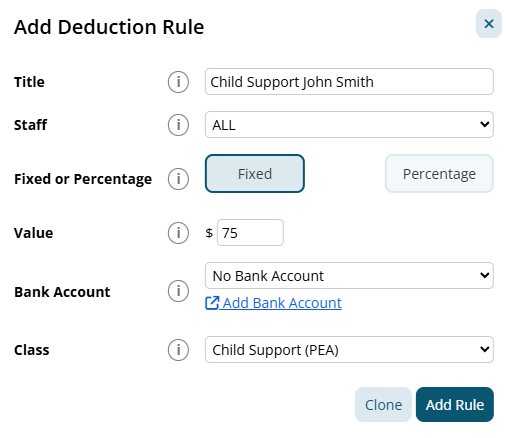
Child Support example
John has a Child Support payment of $482 per week. The amount must be deducted from his pay and paid to the required recipient.
- Open the Deductions tab and click Add New Deduction Rule.
- Optionally click the Child Support template, then check the values.
- Enter a clear Title, such as Child Support - J Smith.
- In Staff, select the employee who is subject to the notice.
- Choose Fixed and enter the amount, for example 482.
- Choose a Bank Account if the amount should be included in the ABA file.
- For Class, choose Child Support (PEA) or Child Support (72A) according to the current notice.
- Click Add Rule.
For Child Support (PEA), Microkeeper adjusts the deduction when necessary so the employee's after-tax pay does not fall below the Protected Earnings Amount. The PEA is maintained in Microkeeper and converted for the account's pay frequency. The 72A classification does not apply this PEA protection.
Salary sacrifice example
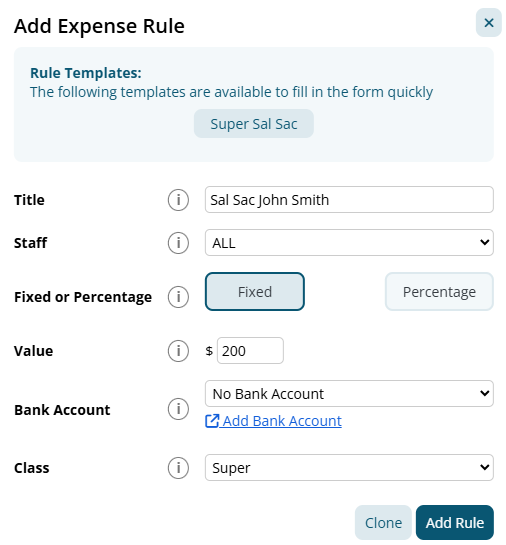
Pam has a before-tax salary sacrifice of $135 per week. The amount is paid into her super fund as salary-sacrifice super.
- Open the Expenses tab and click Add New Expense Rule.
- Optionally click the Super Sal Sac template, then check the values.
- Enter a clear Title, such as Salary Sacrifice - Pam B.
- In Staff, select the employee who is salary sacrificing.
- Choose Fixed and enter the amount, for example 135.
- Choose Super for Class.
- Click Add Rule.
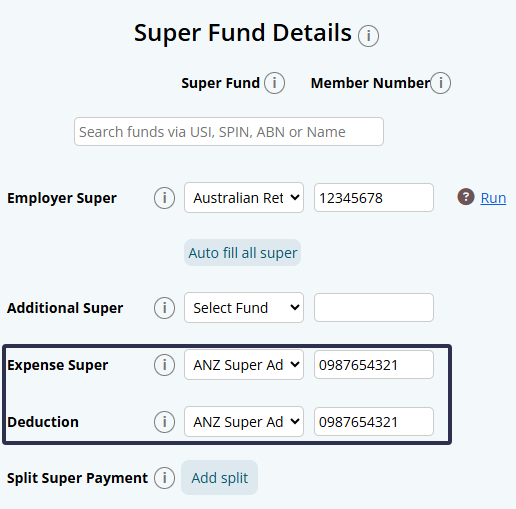
To send the salary sacrifice to the employee's super fund, configure the employee's Expense Super details:
- Open Menu > Settings > Employees.
- Click Edit next to the employee.
- Scroll to Super Fund Details.
- Select the Super Fund and enter the Member Number in the Expense Super row.
Use Auto fill all super when the same fund and member details should be copied across the super categories.
Set up a bank account for automatic deduction payments
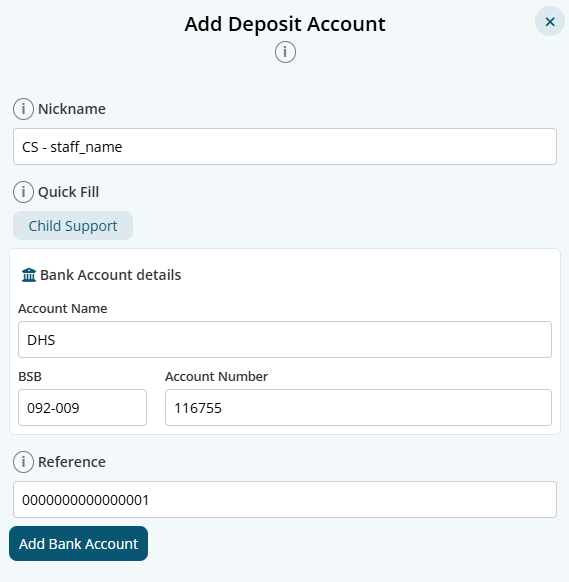
To pay a deduction automatically in an ABA file, first create a Deposit account for the recipient. A Deposit account is used when funds are paid to an account, such as Child Support.
- Open Menu > Settings > General > Bank Details.
- Click Add Bank Account, then choose Deposit.
- Enter the Nickname, Account Name, BSB, Account Number and Reference.
- For Child Support, use Quick Fill > Child Support when helpful, then check the supplied details.
- For the Reference, enter the reference ID required by the recipient. For Child Support, this is the reference supplied by the relevant authority.
- Click Add Bank Account.
- Return to the rule and select the new account in Bank Account.
Deposit accounts do not require a Bank Code, APCA code or Group. If No Bank Account remains selected, the rule is not assigned an automatic ABA destination.
Transfer rules with CSV
The CSV Transfer menu on the Expenses and Deductions page can export existing rules or import a list of rules.
- Click CSV Transfer > Export CSV to download the current format. Use the exported header row as the import template.
- To import rules, click CSV Transfer > Import CSV and select a CSV file. The file must be no larger than 1 MB and its first row is treated as headers.
- Review the result after import. An existing rule is matched by NRID first, then by Title; a row with no match is inserted as a new rule.
| CSV field | Values or meaning |
|---|---|
| NRID | Microkeeper rule ID. Leave blank for a new rule. |
| negtype | expense or deduction. |
| name | The payslip title and title used for title matching. |
| eusername | ALL, a group value such as @GID, or an employee username. |
| value | The fixed amount or percentage value. |
| overtime | The selected Class code, such as SUPER, FEES, GIVE, CS1 or CS2. |
| fixed | 0 = Fixed, 1 = All Payments, 2 = Gross Taxable, 3 = After Tax, 4 = All Payments Less Super. |
| BDID | The selected Bank Account ID, or 0 for no bank account. |
Some characters are removed during import. Review the rules on the page after importing.
Common checks
- If a rule is not appearing, check the selected Staff, the rule type, and that the employee is included in the payrun.
- If a percentage amount is unexpected, check whether the rule uses All Payments, All Payments Less Super, Gross Taxable or After Tax.
- If salary sacrifice is not reaching super, check that the rule is an Expense with class Super, and that the employee has a fund and member number in Expense Super.
- If a deduction is not included in the ABA file, check that a Deposit account is selected in the rule and that its Reference is correct.
- If a Child Support (PEA) amount is lower than the fixed value, check whether the Protected Earnings Amount limit has been applied.