Requesting Leave
This guide will demonstrate how to request sick leave, annual leave and time off.
Navigate
Menu > Home > Employee Console > Leave
Requesting leave
Click the Request Leave button to start your leave request application.
Select the Type of leave you wish to apply for.
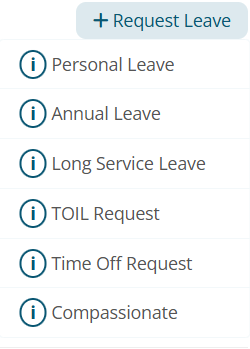
Personal Leave
- This form should be filled when you are sick
- One form should be filled for each day that you require personal leave
- This should be completed as soon as you are aware that you require a sick day
Annual Leave
- This form should be filled when you are requesting annual leave
- This should be completed as soon as you are aware of the period of time you desire for annual leave
- Your employer may have a set period when annual leave is to be taken
Long Service Leave
- This form should be filled when you are requesting long service leave
- This should be completed as soon as you are aware of the period of time you desire for long service leave
- Your employer may have a set period when long service leave is to be taken
TOIL Request
- This form should be filled when you are requesting Time Off in Lieu
- Your employer may have a nominated rostered day off
Time Off Request
- This form should be filled when you are requesting unpaid leave
Compassionate Leave
- This form should be filled when you are requesting for compassionate leave
Submitting a Leave Request
Make sure you review the Leave terms and the leave policy of your employer
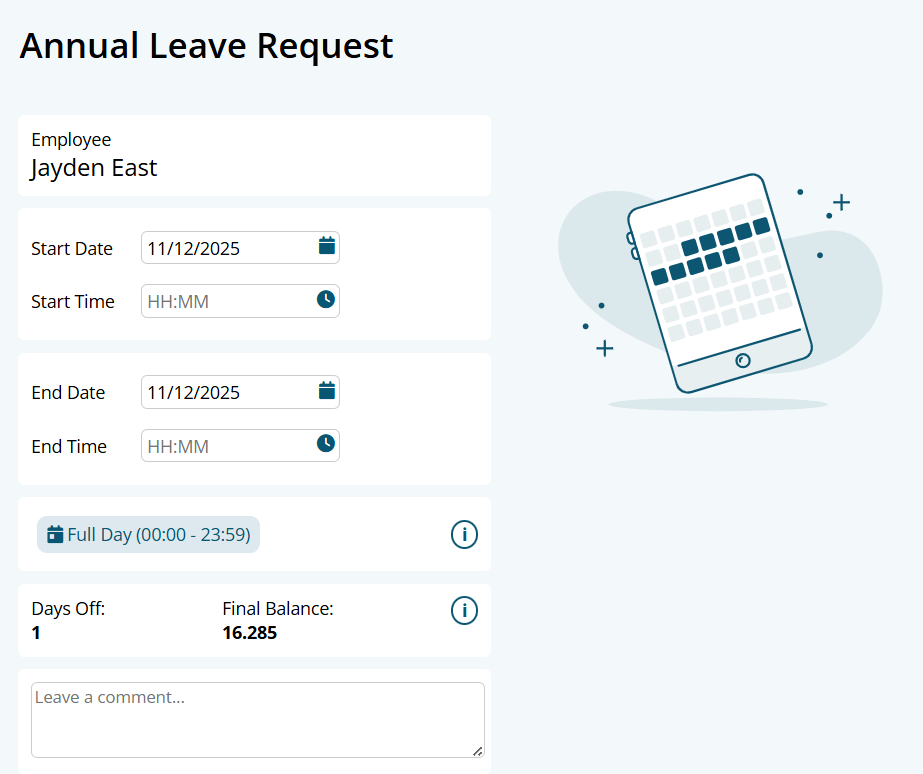
- Start: The first date of your leave request
- End: The last date of your leave request
- Full Day Button: This defaults the start and end time to 00:00-23:59
- Total Hours: Used to estimate the hours taken per day. Not the final balance taken.
- Roster: Estimated rostered hours over the requested period
- Dr Certificate (Personal Leave only): Notify management if you will be getting a Doctors Certificate
- Leave Terms: If you agree to the Leave terms (Make sure you review the Leave terms and the leave policy of your employer)
- Comment: Leave a comment to management if needed
Balance(Annual Leave only): An estimated final balance after the leave has been applied.Current + Predicted - Requested \= Final Balance

How to upload a Dr Certificate (or any file)
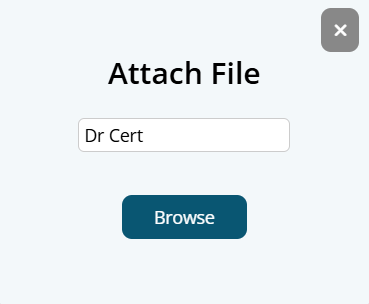
Once you have successfully submitted your Personal Leave request, you can attach a file to the request if you have selected Yes to have a Drs Certificate. You can then click the Cloud Icon to upload your file.
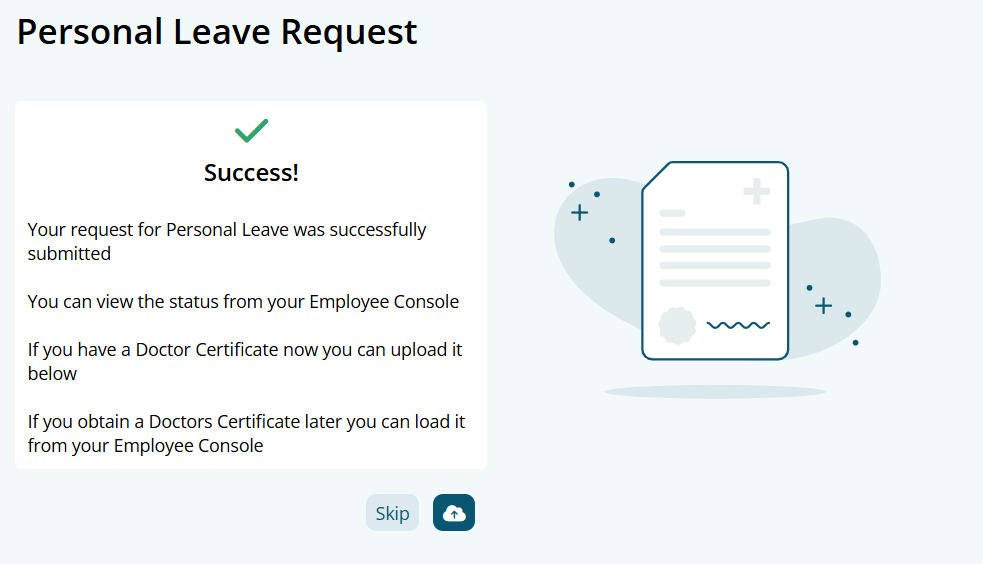
You can then name your file or add a descriptor.
Leave Request Status
Submitted Leave requests can be reviewed on the Employee Console
Navigate to Menu > Home > Employee Console > Leave
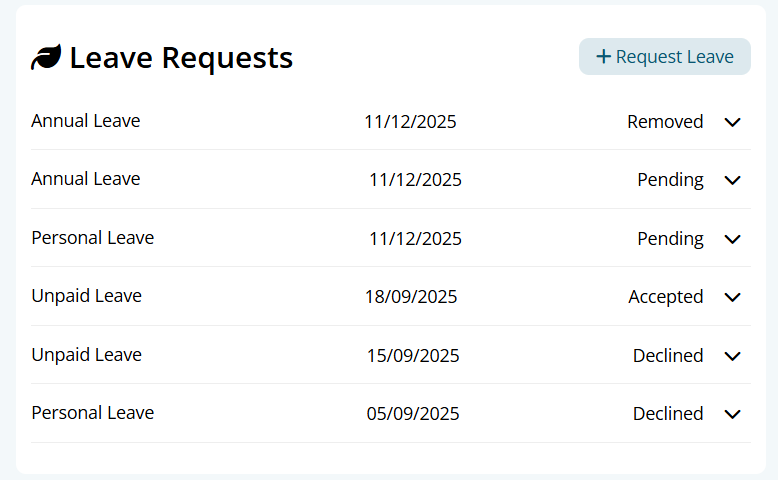
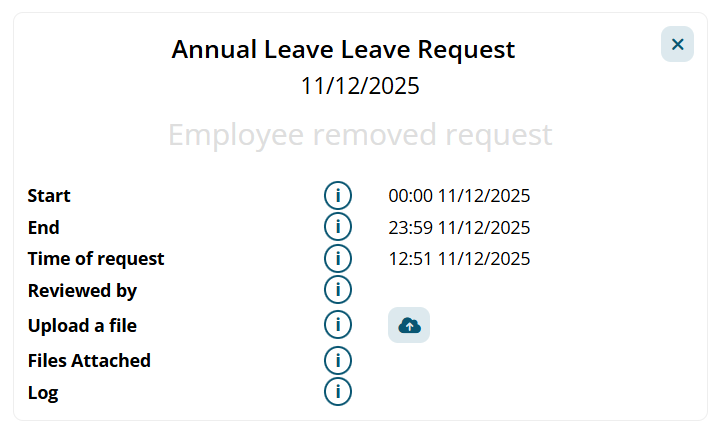
Click the down arrow to display more information on the leave
Leave Request Log
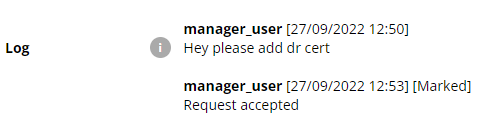
Every event and comment is recorded in the log.
The logs shows who made a change to the Leave Request and when it was changed.
The log also shows any comments left by management.
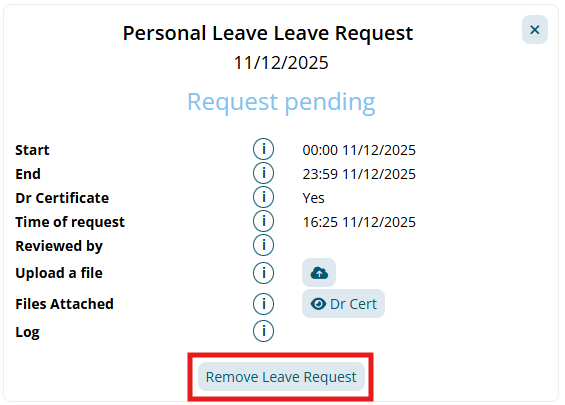
Removing a Leave Request
A request can be removed under certain circumstances by clicking the Remove Leave Request button
If the request is pending, it can be removed and the request status will be instantly marked as removed.
If the request has been accepted, it can be removed, however, this must be reviewed by Management first, its status will be changed to pending removal.