Roles
Roles within Microkeeper are an advanced HR and Rostering feature that allows defining specific roles within the organisation, enabling efficient staff scheduling and ensuring proper skill coverage over rosters.
Navigate
Menu > Settings > General > Roles
What are Roles used for?
Roles in Microkeeper are used to enhance the Rostering and HR management of Employees allowing:
- Efficient Staffing - Assign roles to specific locations, allowing you to quickly allocate appropriate staff to specific work roles.
- Skill-based Scheduling - Attach Skills to a role, ensuring that only staff with necessary qualifications are scheduled for shifts requiring those skills.
- Cross-Location Management - Apply the same role across multiple locations to maintain consistency in role descriptions and requirements throughout a large organisation.
Creating a New Role
To create a new role:
- Click the Add New Role button
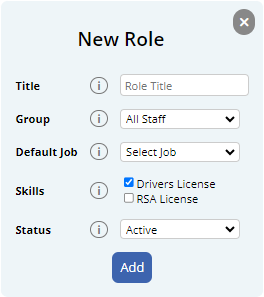
- Configure the new Role with details:
- Title: Enter a concise name for the role (e.g., "Chef, "Waiter")
- Group: Select the staff Group this role belongs to, or choose "All Staff"
- Default Job: Select a default Job for this role, if applicable.
- Skills: Select the required skills for this role.
- Status: Choose whether the Role is Active or Disabled
- Click the Add button to create the new Role.
Best practices when configuring Roles
- Keep role titles short and descriptive for easy identification during rostering
- Use the Group feature to organise roles effectively, especially in larger organisations with many Locations/Departments
Managing and Editing Existing Roles
The main Roles page displays a list of all existing roles. For each Role, you can:
- View its activate, status, title, associated group, default job and required skills.
Editing a Role
To edit a Role:
- Click the Edit button on the Role to edit in the Roles list.
- Modify any of the fields as needed (Title, Group, Default Job, Skills, Status).
- Click the Update button to save the changes.
Configuring Roles to a Location
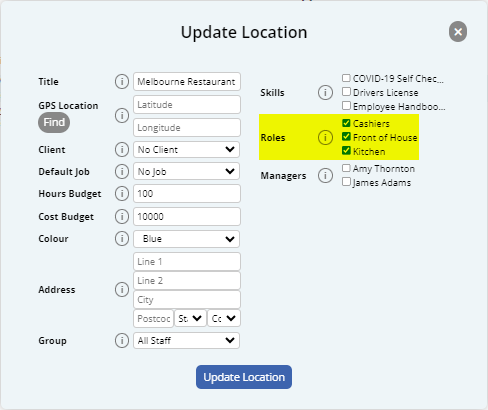
Roles can be associated with Locations through the Locations page.
Navigate to Menu > Settings > General > Locations
- Select the Location to configure Roles to and click the Edit button
- Select the Roles by clicking the checkboxes for each Role to associate to the Location
- Click the Update Location button to confirm changes.
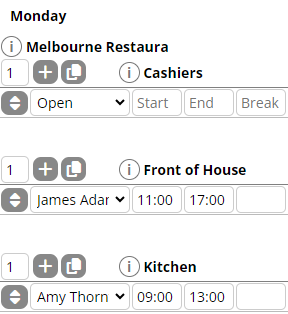
Rostering the Location will now be split into the assigned Roles.
Setting up a Skill for Role interaction
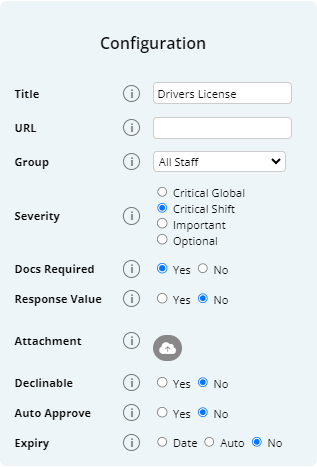
Skills can be set up to interact with Roles through the "Severity- Critical Shift" option.
Any skill that has been configured to Critical Shift will restrict an Employee from clocking into a Role (or Location) that has the Skill attached to its configuration.
E.g., an Employee can clock on as Rostered as a Waiter without completing their Responsible Service of Alcohol Skill, but they cannot clock onto a shift where they have been rostered as a Bartender.